Office 365 - iOS Configuration
1. Click on Settings

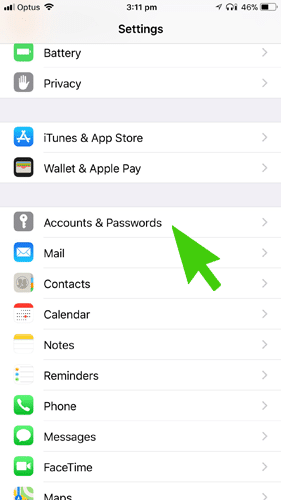
2. Click on Accounts & Passwords
3. Click on Add Account

4. Click on Exchange

5. Enter your email address and password then click on next

6. (Optional) – If this screens pops up enter outlook.office365.com in the server field

7. Choose what you would like synced with Office 365 and your iPhone and then click on save

Related Articles
Office 365 - Apple Mail Error: The message could not be saved
If you are getting this message (shown below) popping up regularly on apple mail Perform the following steps to stop it from happening: 1. Open Apple Mail 2. Go to Apple menu up the top and click "Preferences" 3. Click the "Accounts" tab up the top ...How to Securely Share Large Files Externally Using OneDrive Type
This guide walks you through securely sharing large files with people outside your organisation using OneDrive. Following these steps helps ensure your files are shared safely, with appropriate access controls and full visibility over what's been ...Setup WordPress Email Delivery
Login to WordPress admin for the site you want to modify. Go to the plugins page, search for "fluentsmtp" and click "Install Now". After the plugin installs, press "Activate". Click "Configure FluentSMTP" if shown or follow the wizard in the next ...